
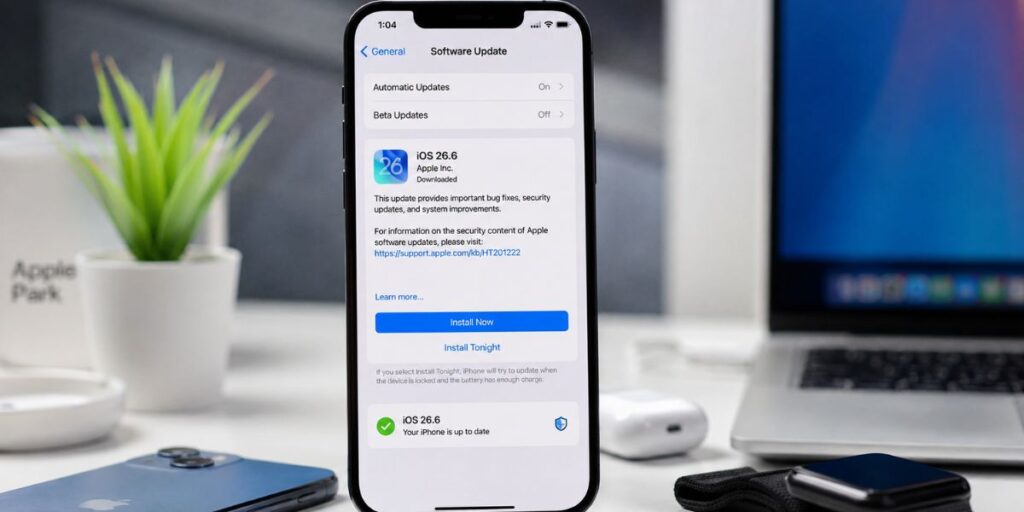
The most recent stable iOS update is iOS 26.6, released by Apple on July 27, 2026. It is a maintenance update rather than another major feature release, focusing on bug fixes, security improvements, and preparation of the Spotlight index for iOS 27, expected later this fall. The fixes cover WebKit, the Kernel, and various system components, including ImageIO, CoreAudio, and Siri frameworks.
Meanwhile, Apple is preparing iOS 27, the next significant update to its iPhone software. On June 8, 2026, Apple formally announced iOS 27 at WWDC26, with a stronger focus on Apple Intelligence, Siri, personalization, and performance and system improvements.
In this guide, we will go over everything you need to know about the current stable iOS version, including when it was released, which iPhones it supports, security updates and fixes, beta software and the installation process, as well as common issues after the update, battery implications, and what users should expect next.
Quick iOS Update Overview
| Information | Details |
|---|---|
| Latest Stable iOS Version | iOS 26.6 |
| Stable Release Date | July 27, 2026 |
| Next Major Version | iOS 27 |
| Latest Beta Information | iOS 27 Developer Beta 5 has been reported as released August 10, 2026; Apple’s indexed Developer release page I could independently verify still lists Beta 4 from July 20, so Beta 5 build details should be treated cautiously |
| iOS 26 Compatibility | iPhone 11 and later, plus iPhone SE (2nd generation and later) |
| iOS 26.6 Update Type | Maintenance, security and bug-fix update |
| Major iOS 26 Features | Liquid Glass design, Apple Intelligence, Live Translation, updated Phone and Messages, Apple Games, CarPlay improvements and more |
| Security Updates | Multiple documented fixes across system components and WebKit |
| Update Size | Varies by iPhone model, installed version and update package; Apple does not publish one universal size |
| Upcoming Major Release | iOS 27, officially announced and currently in beta testing |
What Is the Latest iOS Update?
The latest stable iOS Update available for compatible iPhones is iOS 26.6.
Apple calls iOS 26.6 a combination of bug fixes and security updates, alongside optimizing the Spotlight index for future use with spotlighting opportunities in iOS 27. That means users will not receive any additional large redesign, nor a host of new consumer-facing features from 26.6.
From a security aspect, the update is quite necessary. Apple recorded vulnerabilities in WebKit, Kernel, ImageIO, CoreAudio, Siri, App Store Wi-Fi and other structural components of the system. Several of the vulnerabilities may cause a crash or some unauthorized access (to specific pieces) of data or execute arbitrary code under pressure.
For most compatible iPhone owners, iOS 26.6 is therefore a routine update that is worth installing rather than something to postpone simply because it lacks headline features.
Latest iOS Update Release Date
Apple released iOS 26.6 on July 27, 2026.
The release came after iOS 26.6 moved through Apple’s testing process, including a release candidate published on July 20. Apple subsequently made the final version available to supported iPhones.
The next major release is iOS 27. Apple previewed it at WWDC26 on June 8, 2026, and developer testing began that day. Apple has described iOS 27 as the next major iPhone software generation, with a public release planned for later in 2026.
Also Read: Every New iOS 27 Feature / Drovenio AI Tools / StreamEast App / ChatPic
What’s New in the Latest iOS Update?
The important distinction is that iOS 26.6 itself is not a major feature update.
Its main purpose is improving security and stability and preparing the iPhone software environment for the transition toward iOS 27. Apple specifically says the Spotlight index is optimized to prepare for iOS 27.
Users looking for the major iOS 26 features will find those in the original iOS 26 release and its subsequent updates.
Liquid Glass Design
iOS 26 introduced Apple’s Liquid Glass design language across the system.
It affects controls, navigation, icons, widgets, the Home Screen and Lock Screen. App icons can use light, dark, tinted or clear appearances, while the Lock Screen adapts its presentation around the user’s wallpaper and content.
Apple Intelligence
iOS 26 expands Apple Intelligence with features such as Genmoji, Image Playground improvements, visual intelligence and Live Translation.
However, iOS compatibility does not automatically mean Apple Intelligence compatibility. Apple’s supported hardware requirements are substantially higher. The iOS 26 Apple Intelligence features include support for iPhone 15 Pro and iPhone 15 Pro Max and later supported iPhone generations, rather than every iPhone capable of installing iOS 26.
Live Translation
Live Translation can work across Messages, FaceTime and Phone, translating supported conversations across languages. Availability depends on supported hardware, language and region.
Phone and Messages Improvements
iOS 26 introduced new ways to manage unwanted calls and improved communication features. Apple also added additional tools designed to help users stay focused on important conversations.
Apple Games
iOS 26 introduced the Apple Games app as a central destination for games, allowing users to access their library and discover games and related content.
CarPlay, Maps and Wallet
CarPlay received a redesigned experience with widgets, Live Activities and easier interaction with Messages. Maps gained features such as Visited Places and more personalized routing, while Wallet received improvements for boarding passes and travel information.
iOS Update Features and Changes
It helps to separate iOS 26.6 features from the broader iOS 26 feature set.
| Version | Main Focus |
|---|---|
| iOS 26 | Major redesign, Apple Intelligence and app improvements |
| iOS 26.1 | Liquid Glass refinements, Live Translation language expansion and other improvements |
| iOS 26.2 | Apple Music, Podcasts, Games, AirDrop and other enhancements |
| iOS 26.4 | Apple Music improvements, new emoji, accessibility updates and more |
| iOS 26.5 | End-to-end encrypted RCS beta support, Pride Luminance wallpaper and other changes |
| iOS 26.5.2 | Security fixes |
| iOS 26.6 | Bug fixes, security updates and Spotlight preparation for iOS 27 |
iOS Security Updates
Security is one of the strongest reasons to install the latest iPhone software.
Apple’s iOS 26.6 security document lists fixes affecting numerous components. Among them are Kernel, WebKit, ImageIO, CoreAudio, Apple Neural Engine, App Store, Wi-Fi, Siri, Game Center and other frameworks.
Some documented vulnerabilities could allow malicious apps or crafted files to cause crashes, access protected information, escape application sandboxes or execute code under certain conditions.
WebKit fixes are particularly relevant because WebKit is used for web content. Apple documented multiple WebKit vulnerabilities in iOS 26.6 involving malicious web content, crashes, memory corruption and other security risks.
You do not need to understand CVE numbers to benefit from the update. The practical takeaway is simple: keeping iOS current reduces exposure to vulnerabilities that Apple has already patched.
Which iPhones Support the Latest iOS Update?
iOS 26 supports iPhones beginning with the iPhone 11 generation, as well as the second- and third-generation iPhone SE.
| iPhone Model | iOS 26 Support | Important Feature Limitation |
|---|---|---|
| iPhone 11 / 11 Pro / 11 Pro Max | Yes | Apple Intelligence unavailable |
| iPhone SE (2nd/3rd gen) | Yes | Apple Intelligence unavailable |
| iPhone 12 series | Yes | Apple Intelligence unavailable |
| iPhone 13 series | Yes | Apple Intelligence unavailable |
| iPhone 14 series | Yes | Apple Intelligence unavailable |
| iPhone 15 / 15 Plus | Yes | Apple Intelligence unavailable |
| iPhone 15 Pro / Pro Max | Yes | Supports Apple Intelligence |
| iPhone 16 series | Yes | Supports Apple Intelligence |
| iPhone 16e | Yes | Supports Apple Intelligence |
| iPhone 17 series | Yes | Supports Apple Intelligence |
| iPhone Air | Yes | Supports Apple Intelligence |
How to Download and Install the Latest iOS Update
Apple recommends backing up your iPhone before installing new software. The normal wireless installation process is straightforward.
- Back up your iPhone using iCloud or a computer.
- Connect the iPhone to power.
- Connect to Wi-Fi.
- Open Settings.
- Tap General.
- Select Software Update.
- Check the available iOS version.
- Tap Download and Install.
- Enter your passcode if requested.
- Allow the iPhone to restart and complete installation.
Automatic Updates
Go to Settings > General > Software Update > Automatic Updates.
You can allow the iPhone to automatically download and install software while it is charging and connected to Wi-Fi. Apple recommends automatic updates as a convenient way to receive security fixes and software improvements.
How Long Does an iOS Update Take?
There is no fixed installation time for every iPhone.
The total time depends on:
- Update size
- Internet speed
- Available storage
- iPhone model
- Number of files on the device
- Apple’s server traffic
- Installation and verification time
Apple says download time depends on update size and internet speed, while installation time can vary according to the size of the update and the amount of data on the device.
A small security update may finish relatively quickly, while a major iOS upgrade can take considerably longer.
Do not repeatedly restart an iPhone simply because the progress bar appears slow. Keep it connected to power and give the installation time to complete.
Why Is My iPhone Not Updating?
If your iPhone does not show an iOS Update, several explanations are possible.
Unsupported iPhone
Older iPhones may not support the newest iOS generation. For iOS 26, Apple starts compatibility at iPhone 11 and the second-generation iPhone SE.
Not Enough Storage
The iPhone needs sufficient available storage to download and install an update. Apple says iOS can sometimes temporarily remove downloadable app data during the update process and reinstall it afterward.
Poor Internet Connection
Use a reliable Wi-Fi connection. A slow or unstable connection can make an iOS update take longer or fail.
Update Server Problems
Your iPhone needs to communicate with Apple’s update servers. Temporary connection problems can prevent the update from appearing or downloading.
VPN or Proxy Problems
Apple notes that VPN or proxy connections can sometimes prevent an iPhone from contacting update servers.
Try These Fixes
- Restart the iPhone.
- Connect to a different Wi-Fi network.
- Free up storage.
- Plug the iPhone into power.
- Turn off a problematic VPN temporarily.
- Return to Settings > General > Software Update.
- If necessary, update through a Mac or Windows PC.
Apple also recommends deleting a partially downloaded update from iPhone Storage and downloading it again if the installation repeatedly fails.
Common Problems After an iOS Update
Major software releases can temporarily behave differently while the iPhone completes background tasks. However, not every battery or performance complaint is an officially confirmed iOS bug.
| Problem | Affected Devices | Possible Solution |
|---|---|---|
| Temporary battery drain | Can vary by model | Allow background processes to finish; monitor for several days |
| Device feels warm | Can vary | Keep the phone out of heat and allow background activity to finish |
| Apps behave unexpectedly | Any compatible iPhone | Update apps through the App Store |
| Update appears stuck | Any compatible iPhone | Keep connected to power; follow Apple’s recovery guidance if genuinely frozen |
| Insufficient storage | Any compatible iPhone | Free storage or use temporary app removal |
| Update verification/download error | Any compatible iPhone | Check Wi-Fi and retry; use another network if necessary |
Should You Install the Latest iOS Update?
For most users with an iOS 26-compatible iPhone, yes.
The strongest reason is security. iOS 26.6 fixes a substantial number of documented vulnerabilities, including issues affecting WebKit and system-level components.
You may want to delay only if:
- You have a mission-critical workflow and need extra time to verify compatibility.
- You are using specialized enterprise software that has not yet been tested.
- You are considering a beta rather than the stable release.
For everyday iPhone users, staying on the latest stable software is generally the safer choice.
iOS Beta Updates
Apple offers pre-release software through its developer and public beta programs.
Developer Beta
Developer betas are intended primarily for developers who need to test applications against upcoming Apple software. They can contain unfinished features, bugs and compatibility problems.
Public Beta
The public beta allows participating users to test upcoming software before the stable release. Apple describes the beta program as a way for users to test pre-release software and provide feedback.
Stable Release
The stable version is the software Apple distributes as the normal public release. It is the better choice for most people who depend on their iPhone every day.
As of August 17, 2026, iOS 27 Developer Beta 5 has been reported as available from August 10, while the Apple Developer release history independently verifies iOS 27 Beta 4 from July 20. The current public-beta track has been reported as using the same build lineage as Developer Beta 5. Because Apple’s indexed Developer release page has not yet provided a corresponding Beta 5 entry, users should verify the build shown directly in Settings > General > Software Update > Beta Updates before treating third-party beta details as definitive.
For a primary iPhone, staying on iOS 26.6 stable is the sensible choice unless you specifically need to test iOS 27.
Upcoming iOS Updates
Confirmed Information
Apple has officially announced iOS 27. It was previewed at WWDC26 on June 8, 2026, and Apple has already begun developer beta testing.
Apple’s iOS 27 preview highlights new Apple Intelligence capabilities, a more capable Siri experience, new parental controls and broader system improvements. Apple also lists iOS 27 as compatible with iPhone 11 and later, including iPhone SE (2nd generation and later).
Rumors and Speculation
Details about unreleased iPhone hardware, exact commercial launch dates, future beta schedules and features that Apple has not officially confirmed should be treated as speculation.
Apple has not officially confirmed this information yet whenever a future feature or date has not appeared in Apple’s official announcements or documentation.
iOS Update vs Previous Version
The most useful comparison for current users is iOS 26.5 versus iOS 26.6.
| Feature | Previous Version: iOS 26.5 | Latest: iOS 26.6 |
|---|---|---|
| New Features | Encrypted RCS beta and Pride Luminance wallpaper | No major consumer-facing feature announced |
| Security | Security updates included | Extensive documented security fixes |
| Performance | General improvements | Bug fixes and Spotlight preparation |
| Battery | Results vary | No universal battery improvement promised |
| Bug Fixes | Included | Included |
| Compatibility | iPhone 11 and later, SE 2nd gen and later | iPhone 11 and later, SE 2nd gen and later |
iOS Update Tips
Before installing an Apple iOS Update, use this quick checklist:
- Back up your iPhone before a major update.
- Keep the iPhone connected to power during installation.
- Use Wi-Fi rather than relying on a weak mobile connection.
- Check available storage before downloading.
- Confirm compatibility if you own an older iPhone.
- Update your apps after installing a major iOS release.
- Restart the iPhone if an app or system feature behaves unusually.
- Give major updates time before judging battery performance.
- Avoid beta software on a phone you depend on for work, banking or daily communication.
- Keep automatic updates enabled if you prefer Apple to handle security and maintenance releases automatically.
Conclusion
Here is the most recent stable iOS Update 26.6 (Jumped: 07/27/2026). It does not have the major UI refresh that a new version of iOS 26 would normally bring or a long list of headline features. Its purpose is security patches, bug corrections and Spotlight prep for the approaching iOS 27 generation.
As with iPhone 11 and newer models (in addition, last year’s second- and third-generation iPhone SE), the latest features available in iOS 26 still support these devices, with performance-intensive new functionality requiring next-gen hardware powered by Apple Intelligence.
For many iPhone owners, part of the dilemma in installing iOS 26.6 is that keeping an iPhone on a current stable release means retaining security protections as Apple fine-tunes its implementation. Beta software is pre-release and may contain faults or compatibility issues, so keep that in mind if you’re looking at iOS 27.
iOS Update FAQs
1. What is the latest iOS update?
The latest stable iOS Update is iOS 26.6, released on July 27, 2026. It focuses mainly on security updates, bug fixes and Spotlight indexing preparation for iOS 27 rather than introducing another major collection of consumer-facing features.
2. What is the newest iOS version for iPhone?
For normal users, the newest stable version is iOS 26.6. iOS 27 is the next major version and is currently being tested through Apple’s beta programs. A beta is pre-release software and should not be confused with the stable public version.
3. What is new in the latest iOS update?
iOS 26.6 mainly brings security fixes, bug fixes and Spotlight indexing optimization. The larger iOS 26 feature set includes Liquid Glass, Apple Intelligence, Live Translation, redesigned system experiences, Apple Games and improvements to Phone, Messages, Maps, Wallet and CarPlay.
4. Which iPhones can get the latest iOS update?
iOS 26 supports iPhone 11 and later models, plus the iPhone SE (2nd generation and later). However, individual features can have stricter hardware requirements. For example, Apple Intelligence does not work on every iPhone that can install iOS 26.
5. How do I update my iPhone?
Open Settings > General > Software Update. If an update is available, select Download and Install and follow the instructions. Apple recommends backing up the device first and connecting it to power and Wi-Fi during the process.
6. Why is my iPhone not showing the update?
Common reasons include an unsupported iPhone, insufficient storage, poor internet connectivity, inability to reach Apple’s update servers or an incomplete previous download. Check compatibility, free storage, connect to reliable Wi-Fi and try again.
7. Is the latest iOS update safe to install?
For compatible devices, iOS 26.6 is the stable Apple release and includes important security fixes. Apple documented vulnerabilities affecting multiple system components, making the update particularly relevant for users who prioritize device security.
8. Does an iOS update improve battery life?
Not necessarily. Battery behavior can change after software updates, and Apple notes that network conditions, usage and other factors affect battery and system performance. Do not assume that every iOS Update will increase battery life.
9. How long does an iOS update take?
There is no universal time. Downloading depends heavily on internet speed and update size, while installation depends on the iPhone and its stored data. Small updates may finish quickly, while major releases can take considerably longer.
10. Can I go back to an older iOS version?
Apple states that after an iOS update has been installed, the device cannot normally be downgraded to the previous version. This is another reason to be cautious about installing beta software on a primary iPhone.